Organization & disk space
Remove duplicate files while keeping an original
Photos copied twice, downloaded documents with “copy” in the name, or videos in several folders: duplicates can quietly fill a drive. The important part is confirming that the contents are identical and keeping a usable original.
You will find confirmed duplicate copies, review the retained original and move suitable extra copies to the Recycle Bin.
A matching name is not enough
Two files called holiday.jpg may contain different photos. Two files with different names may contain exactly the same photo. DiscReveal first narrows down candidates by size and a short content check, then compares the complete files byte by byte. Only confirmed identical contents appear as duplicate matches.
Find and review copies, step by step
Open the duplicate finder
Choose “Duplicates” in the top menu. You do not need to run a drive scan first.
Choose drives and filters
Choose one or more drives. Files below 10 MB are excluded by default to focus on larger copies. Turn off “Exclude small files” if you also want smaller photos or documents included. Under “Search options”, you can set size limits or include or exclude file extensions.
Start the search
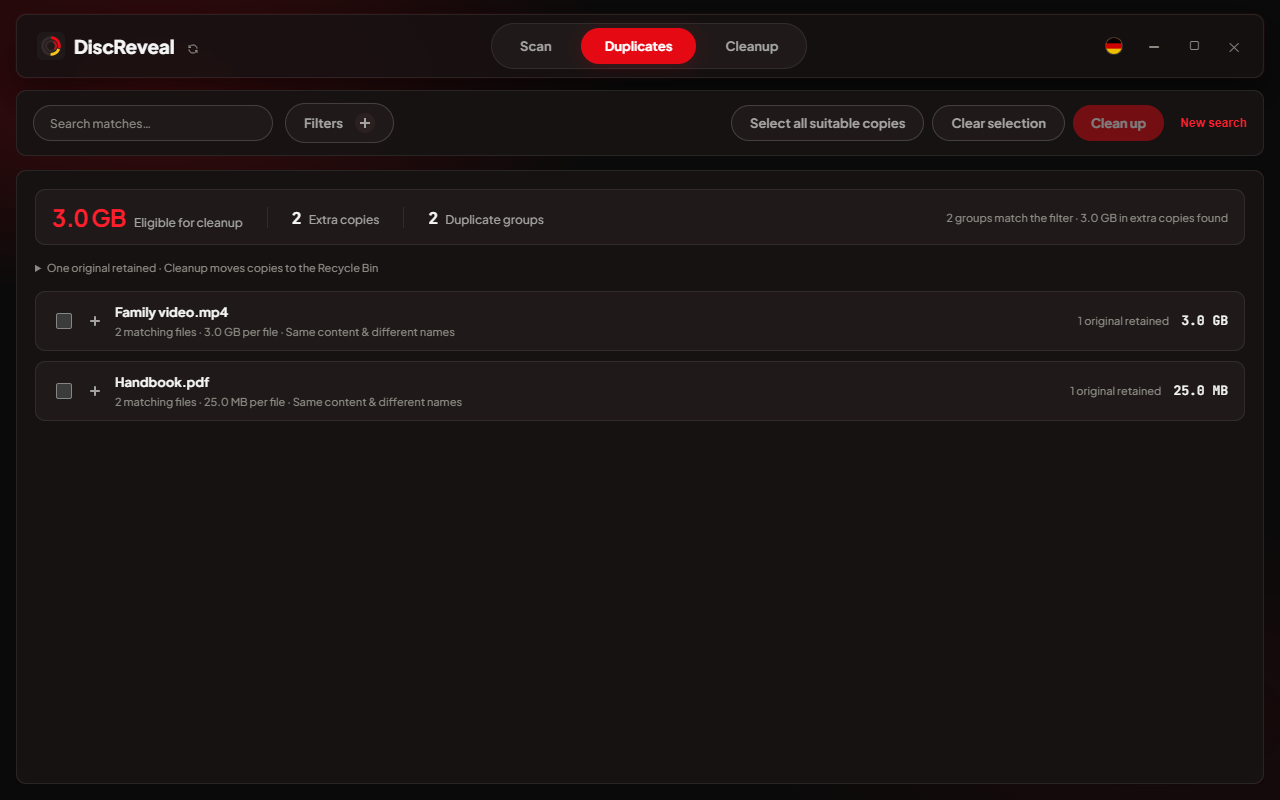
Click “Start search”. Open a group to review its copies and retained original. Confirmed groups and their potential savings update while files are checked. Result filters let you narrow the list by name or path, size, extension and why the files were grouped.
Check the original and the paths
Each group shows which file will stay as the original: the oldest known copy. Read the paths before selecting extra copies. Identical contents do not mean every copy is unnecessary; a project or backup may rely on a particular location.
Select suitable copies
“Select all suitable” proposes extra copies of personal documents and media and leaves program and system data out of bulk cleanup. Review the selection and remove any copy you still want to keep. The retained original cannot be selected for removal.
Review and clean up
Click “Clean up” and review the copies and their retained originals in the confirmation. Cleanup moves the selected copies to the Recycle Bin. Each copy is compared with its original again before removal; changed, missing or no longer identical files are skipped.
What does the space total mean?
Potential savings count extra copies, leaving one original in each group. This is not the total size of every matched file, and it is not a promise that every copy should be removed. The total uses measured occupied file space, accounting for compression and sparse files. Unavailable measurements are marked and excluded from the total. Hard links are skipped because another name for the same file is not an extra copy.
Moving files to the Recycle Bin does not immediately release their space. Check the contents and empty it when you are certain you no longer need those files. The displayed savings are potential; the actual change in drive free space can differ because of filesystem metadata or other activity on the drive.
When a duplicate should stay
- A backup is intentionally a second copy. Keep it if it is part of your backup plan.
- Applications and projects can expect a file at a specific path. Moving a copy may break that reference even though another copy remains.
- Cloud-synced folders can propagate a deletion to other devices. Check your sync service before removing files there.
Make repeat searches faster when you want to
The optional cache can speed up later duplicate searches by recognizing unchanged files. It is off by default and stores file paths, sizes, modification times and short content fingerprints locally in AppData only if you enable it. You can clear it in the app. You do not need the cache for a normal search.
See where your disk space goes
Free for Windows 10/11 · No DiscReveal installation · No account
Download DiscReveal