Organization & disk space
What is taking up space on my Windows drive?
Windows says your drive is almost full, but it is not obvious where the space went. Start by finding the largest folders. Then work your way down to the files inside them instead of deleting things at random.
You will know which folders take up the most space and which of your own files are worth reviewing.
Start with an overview
DiscReveal is a free disk space analyzer for Windows 10 and 11 (64-bit). Download discreveal-portable.exe and open it. There is no DiscReveal installer or account to set up. Microsoft Edge WebView2 is required; the app offers an installation link if it is missing.
Find the largest folders, step by step
Choose the drive
Select the drive that is running out of space and click “Start scan”. For an external disk or USB drive, choose its drive letter.
Watch the results appear
Folder sizes update while the scan runs. You can already browse the results. A folder that is still being scanned may grow as more files are counted.
Follow the biggest folders
Use List view to compare sizes and bars. Open a large folder and repeat until you reach files you recognize. In the example below, Videos and Downloads are useful places to investigate.
Find a particular file
Use the search field to look for a filename across the scanned tree. Open the charts if you want to explore large files or see how space is split by file type.
Review before removing
Wait for the scan to finish, or stop it, before deleting through the app. Check what each file is and whether you still need it. For your own files, the Recycle Bin gives you a chance to restore a mistaken deletion.
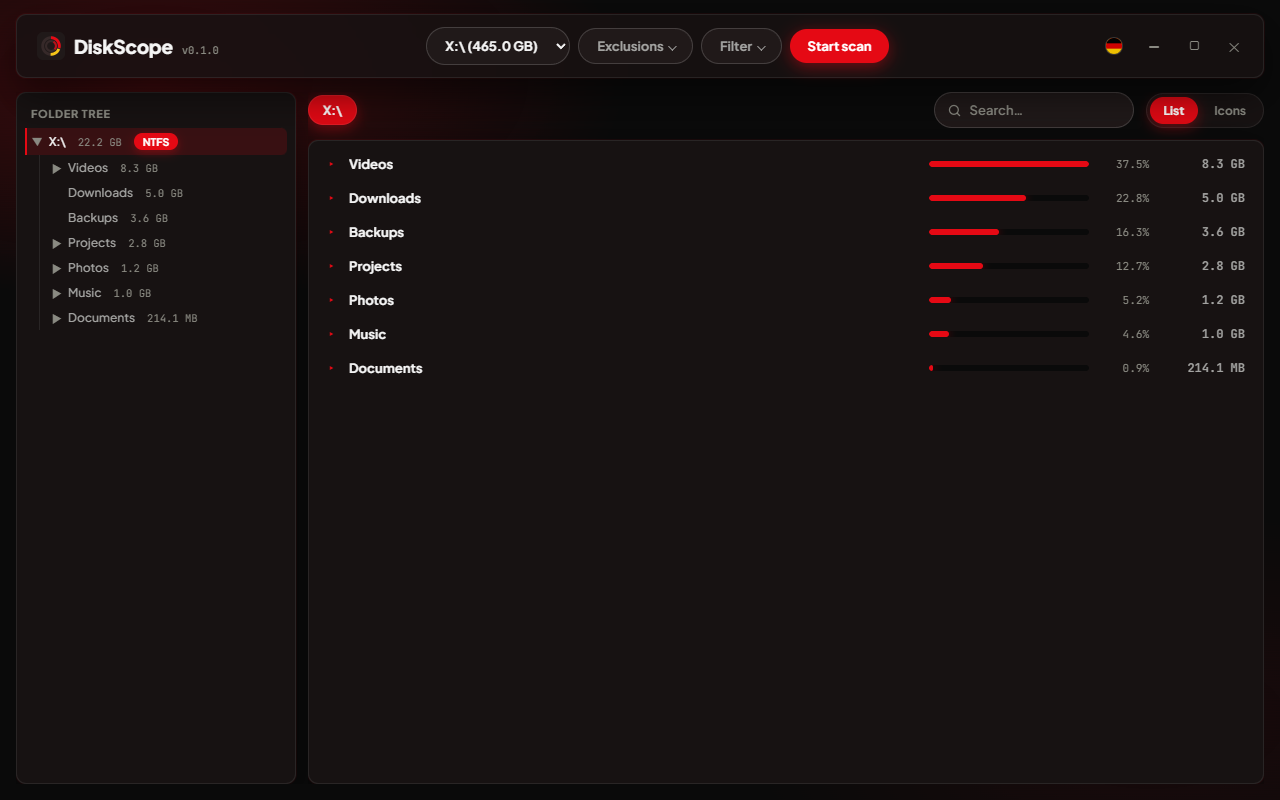
What is worth checking first?
- Downloads: old installers, ZIP archives and files you have already copied elsewhere.
- Videos: recordings and exports can take up a lot of space even when there are only a few files.
- Backups: confirm that a newer, usable backup exists before removing an older one.
- Duplicate personal files: use the duplicate finder to check copies rather than judging by name alone.
A large folder is not automatically disposable
Windows folders, application data and installed programs can be large because the computer needs them. Uninstall an unwanted application through Windows settings instead of deleting its program folder. DiscReveal helps you see where the space goes; it cannot decide which personal files you still need.
Some protected files cannot be read. An inaccessible or incomplete folder may therefore show less than its actual size. Review the final scan results rather than treating a changing number as the final total.
Why is the drive still full after deleting?
Files moved to the Recycle Bin still occupy space. Check its contents and empty it when you are sure you no longer need them. If a folder was excluded from the scan, its files will not be part of the results; adjust the exclusions when you need a broader overview.
See where your disk space goes
Free for Windows 10/11 · No DiscReveal installation · No account
Download DiscReveal