Organization & disk space
Windows cleanup: Free up disk space with control
Downloads, caches and installation leftovers can grow unnoticed. You do not have to understand every hidden folder to clean up. DiscReveal checks supported areas and groups the results clearly. You then decide what to remove.
One check finds cleanup opportunities, lets you deselect whole areas and asks for confirmation before removing anything.
First find where the space goes
If your drive is full, start with Scan. Large videos, archives or old downloads can take up more space than a small cache. Cleanup complements that overview: it checks known cleanup areas instead of treating every large file as something to delete.
Clean up with DiscReveal
Check the areas
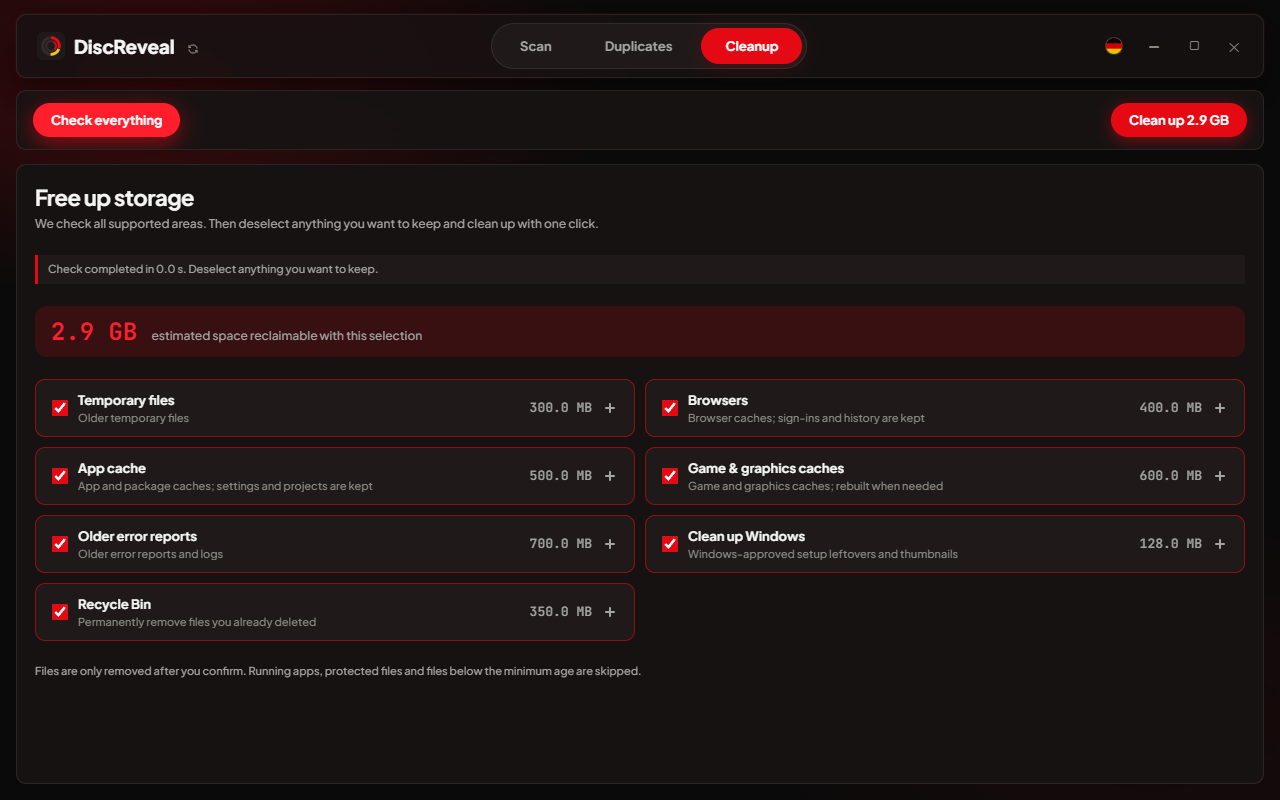
Choose “Cleanup” in the top menu and click “Check everything”. The progress display keeps you informed while it checks.
Review the selection
Check the sizes found. Results are preselected in broad areas. Open an area to see what it includes, or deselect the whole area.
Confirm what to remove
Start cleanup only when you are happy with the selection. DiscReveal asks for confirmation. Running apps, protected files and files that are too recent are skipped.
Which areas are checked?
Availability depends on your installed applications, access permissions and system. The supported catalog does not include every cache on your computer. An empty area therefore does not mean every possible application file was examined.
- Temporary files: older working files in supported temporary locations.
- Browsers: supported caches, without deliberately removing logins and browsing history.
- App caches: supported application and package caches; settings and projects stay.
- Game and graphics caches: shader and graphics data that can be rebuilt.
- Old error reports: supported diagnostic and log leftovers.
- Windows cleanup: system and installation leftovers checked by Windows, plus thumbnails.
- Recycle Bin: permanently remove files already placed in the bin.
Take a closer look at Windows leftovers and the Recycle Bin
Protected Windows areas can require administrator rights. DiscReveal uses Windows’ intended cleanup functions to check and remove system leftovers.
A previous Windows installation may let you return to the earlier version. Removing those files removes that option. Emptying the Recycle Bin removes its straightforward Restore option. You can deselect either area if you want to keep it.
Less clutter does not automatically mean a faster PC
Cleanup makes room for your files and for Windows to work. It is not a blanket promise of faster application launches or higher game frame rates.
Caches can grow again as applications rebuild them. Clean up when needed, and investigate the cause if storage repeatedly fills up. Avoid deleting all of AppData or unfamiliar Windows files at random.
See where your disk space goes
Free for Windows 10/11 · No DiscReveal installation · No account
Download DiscReveal